Cloning Courses
Instructors may want to reuse an older course as a template for a new course to prevent manually reuploading/recreating content. This can be done via the Clone Assistant feature.
Click on the "Clone an assistant" button in the navbar to open the clone dialogue.
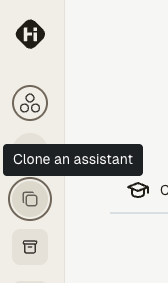
The clone button in the navigation bar
This will bring up a dialogue box where you specify the course that you want to clone.
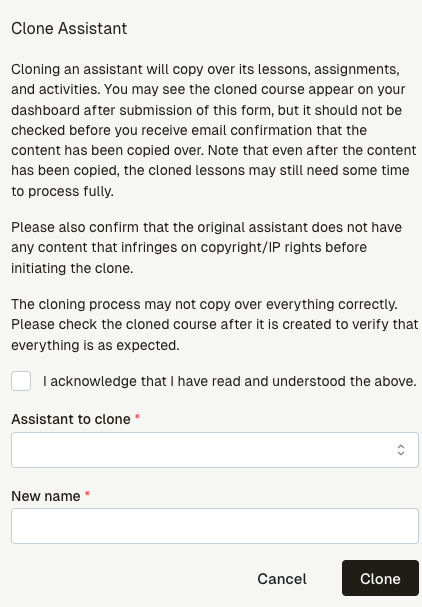
The dialogue box that appears when you click the clone button
Read the acknowledgement and check the box to confirm that you understand the cloning process. Then, select the course you want to clone from the dropdown menu and enter a name for the new course.
Submitting the form will start the cloning process. It will not finish immediately: the cloning process will run in the background. You will receive an email notification to the address that your account is registered to when the cloning process has moved over all content from the original course to the new course.
The cloned course may appear on your navigation bar before the cloning process is complete (e.g., it may not have all of the content from the original course even if it has appeared).
Once you receive the email, it means that HiTA has finished copying over all content that it could from the original course. It does not mean that everything is ready as the newly copied lessons still may be undergoing processing so that the assistant can use it in its responses.
Even after all content has been copied over, the cloned course may not be fully functional until all lessons have finished processing.
The cloning process may fail to copy all content from the original course. Instructors should review the cloned course to ensure that all content has been copied over correctly.
Cloning will not correct any due dates and deadlines from the original course. You will have to manually update any due dates and deadlines in the cloned course to reflect the new semester or period.