Linking HiTA Activities to Canvas
HiTA activities can be linked to Canvas via the Canvas deep-linking functionality. This allows users to access the activity directly on Canvas via a Canvas assignment, and if the activity is graded via HiTA, any grade that is posted on the HiTA activity will be posted as a pass/fail grade to the Canvas assignment.
Creating an Activity
Linking the Activity on Canvas
First, create an activity on HiTA.
After that, go to the assignments page on Canvas. There, you can click on the triple dot button next to the assignment add button where you will find the "Add HiTA Assessment" button.

Click this button to start the deeplinking process.
Once this button is clicked, you will see a list of activities you can select. For each selected activity, an assignment will be created on Canvas that links to the activity.

Select activities to link to.
Clicking on the Canvas assignment created from the deep-linking process will open the activity editing page directly in Canvas. You can edit the assignment here like how you would edit it if you opened the activity on HiTA.
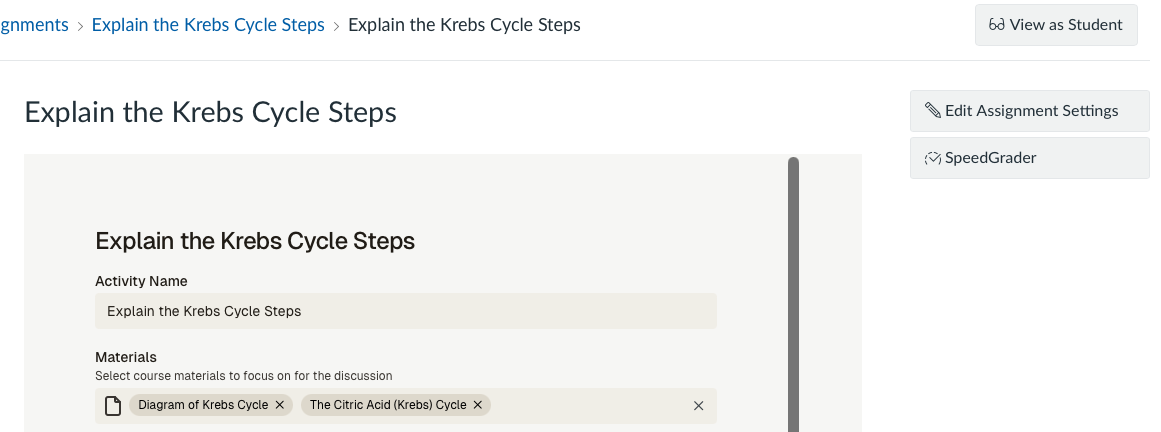
Once an activity is deep-linked, instructors can click on the Canvas assignment associated with it to edit the activity.
If a student clicks on the Canvas assignment created from the deep-linking process, they will be able to complete the activity directly from Canvas.
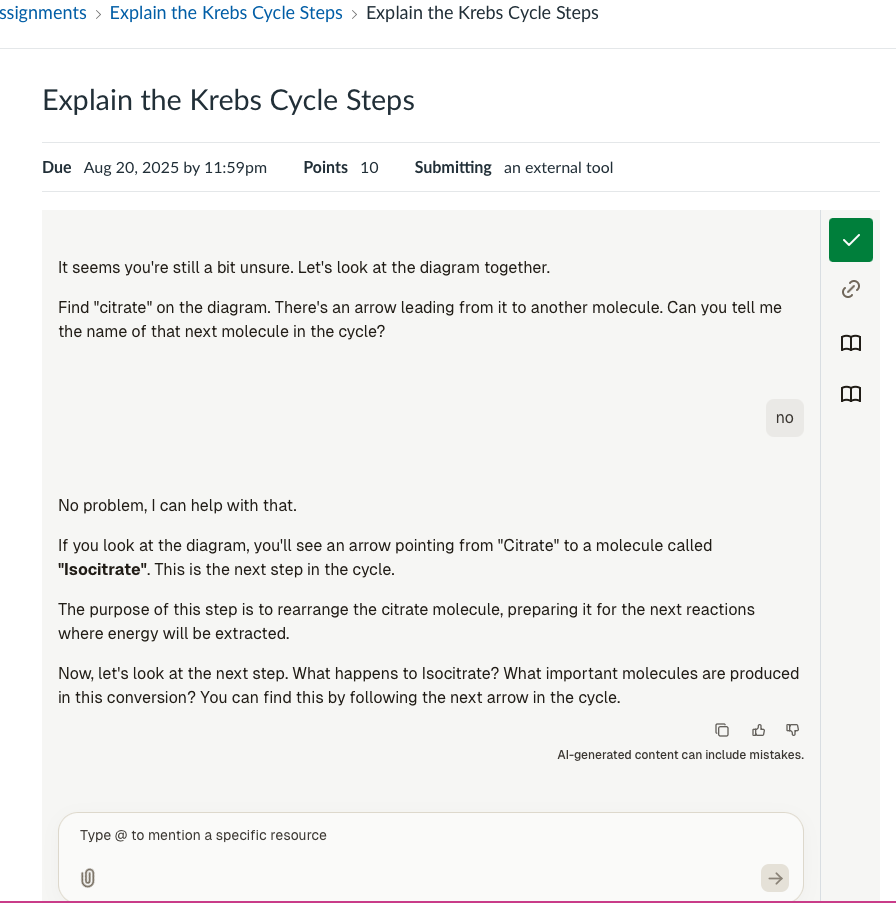
Students can complete the activity directly from Canvas.
Graded Activities and Automatic Grade Posting
If the HiTA activity has grading enabled, then whenever a grade is posted via HiTA (either through automated grading or through manual grading), the grade will be posted to the Canvas assignment.
This requires that the student has logged into HiTA from Canvas at least once. If the student has not logged into HiTA from Canvas, then no grade will be poste (because HiTA will not know which Canvas user corresponds to the student).
Existing Grades and Linking
If you link an existing activity that already has grades posted to it on the HiTA end, doing the link will not automatically post the existing grades to Canvas. Only grades that are posted after linking will be posted to Canvas.
If you want to post existing grades to Canvas, you can (1) manually repost all existing grades and/or (2) download the activity CSV and use it to simplify the process of posting the grades in Canvas. The download CSV button can be found on the activity analytics page for the activity.
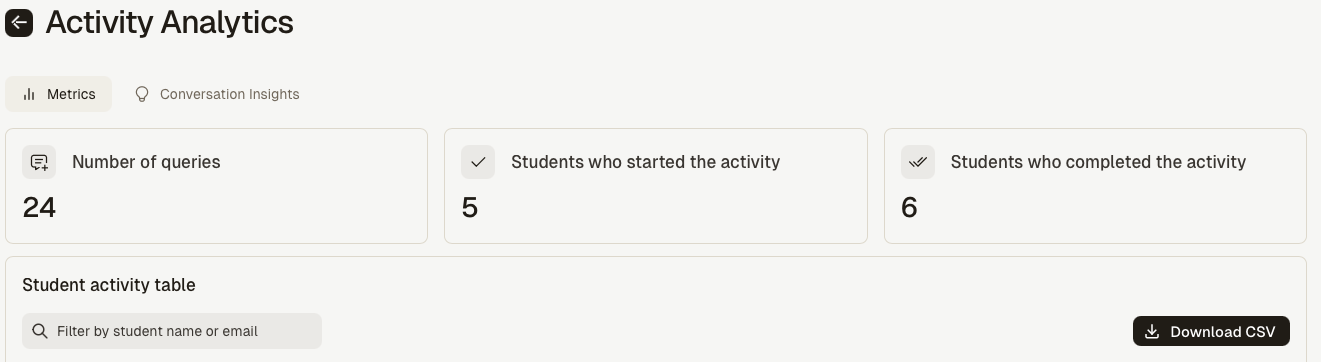
Click on the Download CSV button to get the activity data in an easier to parse format for grade posting.